
1. If you're not already there, head to go.per4mance.io or log into the Per4mance iPhone or Android app.
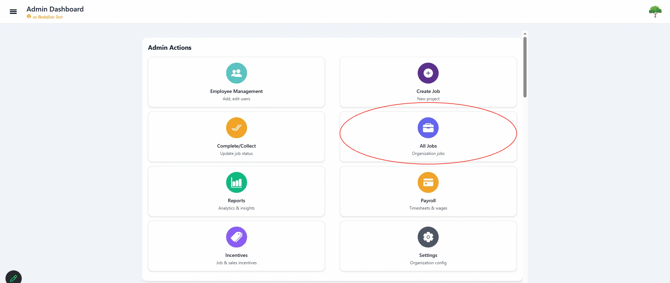
2. Click on "All Jobs" found on the top right of your dashboard. This can also be accessed via "Jobs" in the three horizontal lines on the top left of the screen.
3. Select the Job you wish to add Hours to.
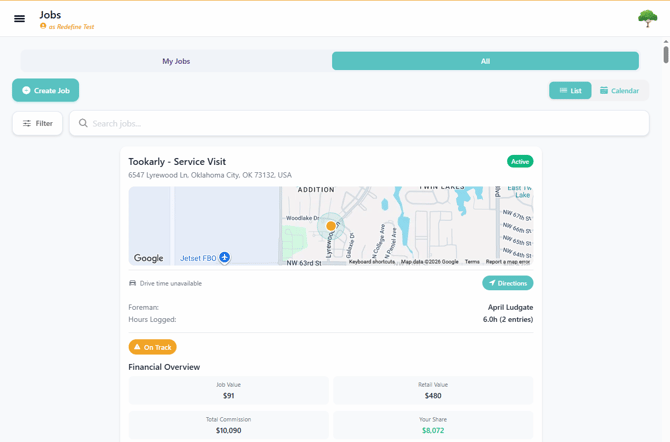
You can easily find the job by searching for the Job Title, using a Filter on the top left of the screen or scroll until finding it.
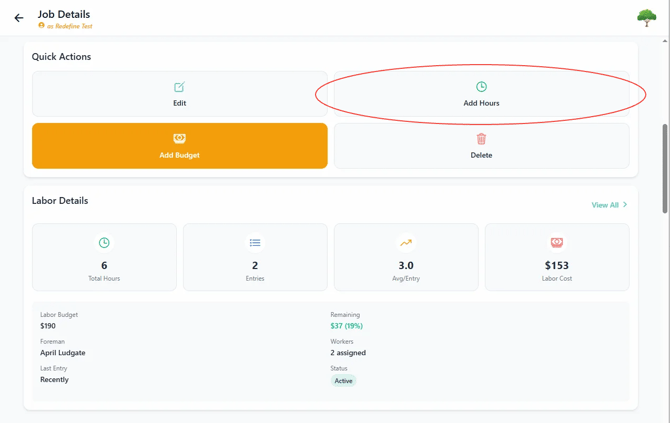
4. Scroll down to Quick Actions and click "Add Hours".
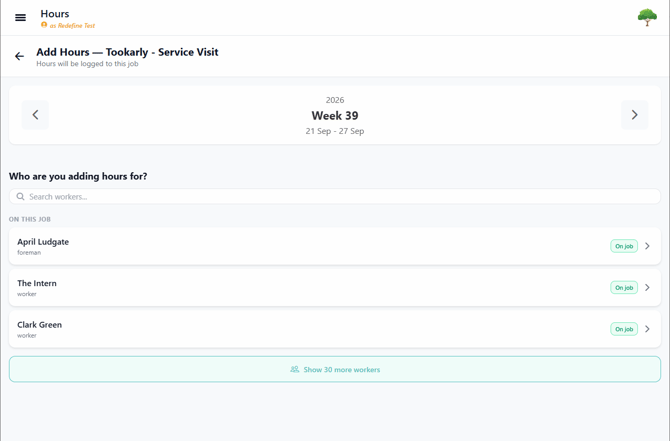
5. Select on the worker that you wish to add hours for, if they have not already clocked hours against this job find them in the "Show # more workers" button below.
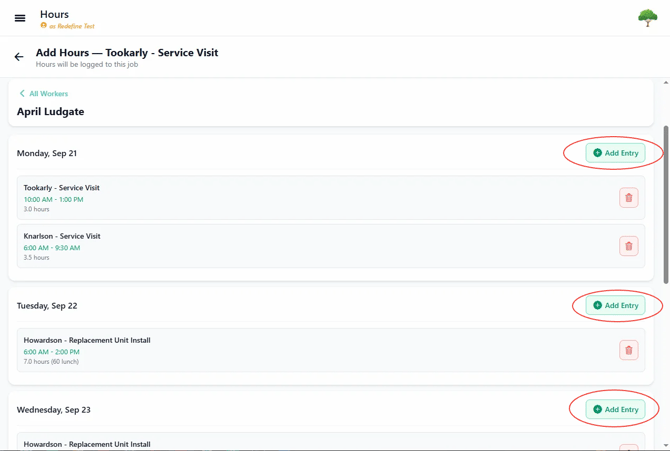
6. Once the worker is selected, click on the "Add Entry" button located in the correct date you wish to add hours to.
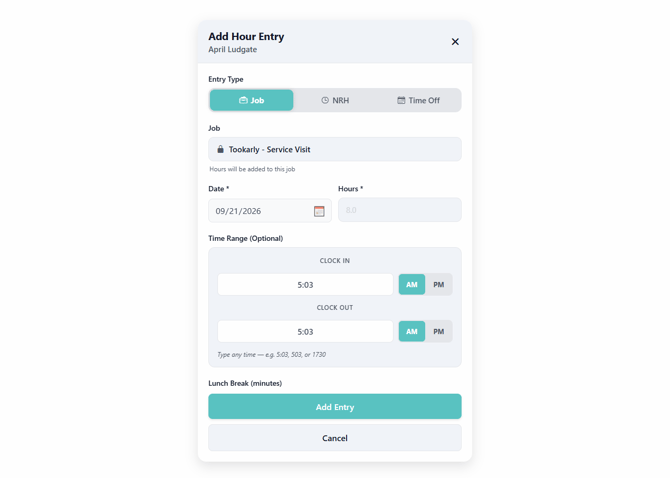
7. Fill out Date, Hours, Time Range (optional), Lunch Break (if applicable), and click Add Entry to finish.
Issues?
-
Still not able to add Hours to an existing Job? Something may be wrong. Submit a ticket here or book support meeting.
- Is this article out of date? Submit a ticket to tell us.
Related Articles
- How do I remove hours from an existing Job?
- How do I add a worker to a Job?
- How do I replace the Foreman assigned to a Job?