
1. If you're not already there, head to go.per4mance.io or log into the Per4mance iPhone or Android app.
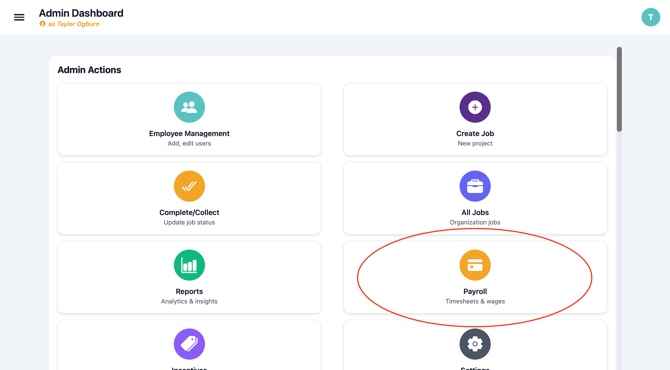
2. Click on "Payroll" found on the top right of your dashboard. This can also be accessed via "Jobs" in the three horizontal lines on the top left of the screen.
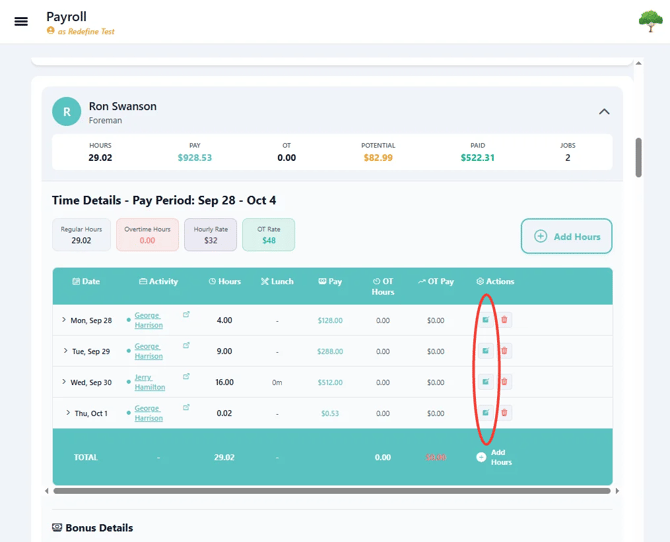
3. Search for the employee by name, filter, or scroll until finding the employee you wish to add hours to. Select the employee and click the green edit button next to the red trash can under "Actions".
4. Edit the Clock In and Clock Out times to the accurate times, or change the amount of Hours to the correct amount. Click the "Save Changes" button to finish.
.png?width=670&height=607&name=edit%20hour%20entry.PNG-mh%20(1).png)
Issues?
-
Still not able to edit Hours for a User from the Payroll Screen? Something may be wrong. Submit a ticket here or book support meeting.
- Is this article out of date? Submit a ticket to tell us.
Related Articles
- How do I remove hours from an existing Job?
- How do I add a worker to a Job?
- How do I replace the Foreman assigned to a Job?