
Contents
- Getting to the Payroll Screen
- The Header
- Per Employee Summary
- Per Employee Hour Details
- Per Employee Bonus Details
Getting To the Payroll Screen
1. If you're not already there, head to go.per4mance.io or log into the Per4mance iPhone or Android app.
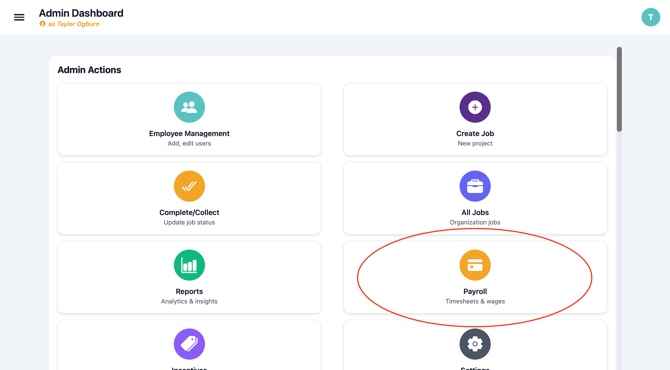
2. Click on "Payroll" found on the top right of your dashboard. This can also be accessed via "Jobs" in the three horizontal lines on the top left of the screen.
The Header
-
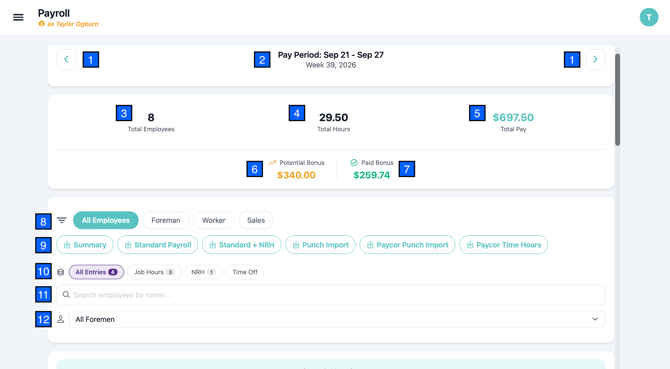
Use the left and right arrows to change which week you're currently reviewing.
- This shows the week's beginning and end date, as well as the week's number for the year.
- This represents how many employees you have active and listed in the report.
- The combined number of hours attributed to this week by the entire team.
- The summed total of pay for your crew's labor, not including bonus.
- Potential Bonus is the combined bonus from jobs that have not yet been collected and had labor on them this week. Collecting them moves them into...
- Paid Bonus! This is the sum of all jobs collected within this week.
- Filter by employee role.
- Export the Payroll Screen, which each button representing a different format. Try them all, as one may work better for your system.
- Filter by Hour Type like hours worked on a job, Non-Revenue Hours, or Time Off.
- Search for a single specific employee
- Use the dropdown to find a specific foreman.
Per Employee Summary
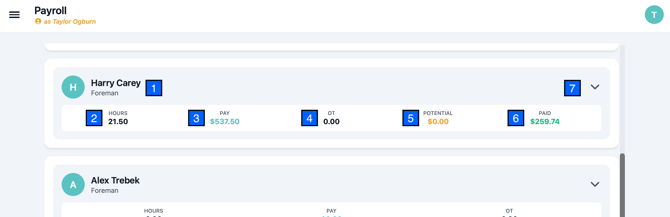
- The employee's name and role is at the top of the card
- The total number of hours worked by the employee
- The total hourly pay is represented in "Pay"
- "OT" shows what portion of the total time is overtime
- If the employee has labor on a job that hasn’t been collected yet, the bonus tied to that job will be totaled here in "Potential".
- "Paid" shows the total for all bonuses collected this week.
- Clicking or tapping the chevron will open the card allowing you to see the Per Employee Hour Details.
Per Employee Hour Details
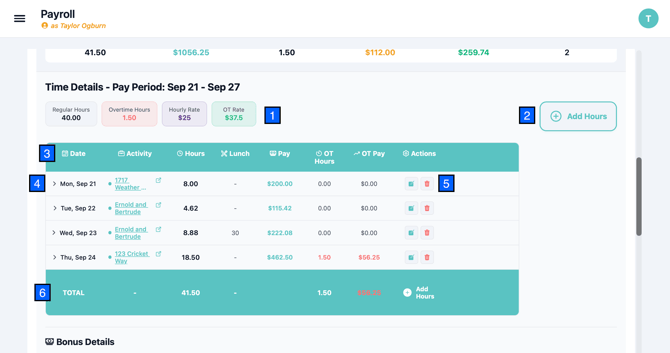
- The employee's Total Regular Hours, Total Overtime Hours, Hourly Rate and Overtime Hourly Rate
- Add hours to any day and job using the Add Hours button
- Titles explaining the purpose for each column
- Clicking or tapping on the chevron will open the row allowing you to see clock times and locations (if applicable)
- Actions for editing an hour entry or deleting it
- Combined totals for hours, overtime hours, regular pay, and overtime pay.
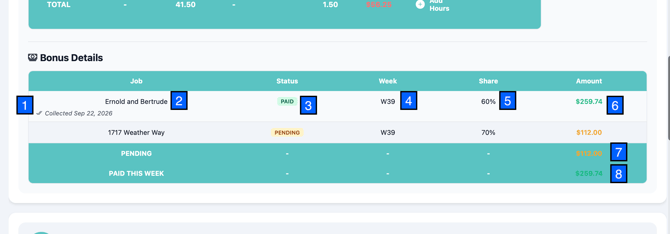
Per Employee Bonus Details
- The date the job is set to collected
- The job name
- Possible statuses include paid (the job has been collected), pending (the job is not yet complete), or completed (the job's work has been completed, but the bonus is not collected).
- This show which week(s) the labor of this job took place, allowing accrual based accounting to allocate bonus back to the weeks they belong to.
- Share is the portion of bonus split for this employee
- The Amount is how much bonus is currently due to the employee, green is collected, yellow is still pending, and red is negative bonus due to going over the budget on that job. Overages count against other bonus, reducing their profit share.
- Finally, the totals for Pending amounts and Paid amounts.
Issues?
-
Still not able to add Hours to an existing Job? Something may be wrong. Submit a ticket here or book support meeting.
- Is this article out of date? Submit a ticket to tell us.
Related Articles
- How do I remove hours from an existing Job?
- How do I add a worker to a Job?
- How do I replace the Foreman assigned to a Job?